Step 2: Activating your mandate
After Configuring your Mandate as the Paycycle User you have 4 options to get the mandate active.
Option 1: E-MandatePaycycle incorporated an electronic mandate, which you can send to your client, once completed and sign online your mandate will be activated.
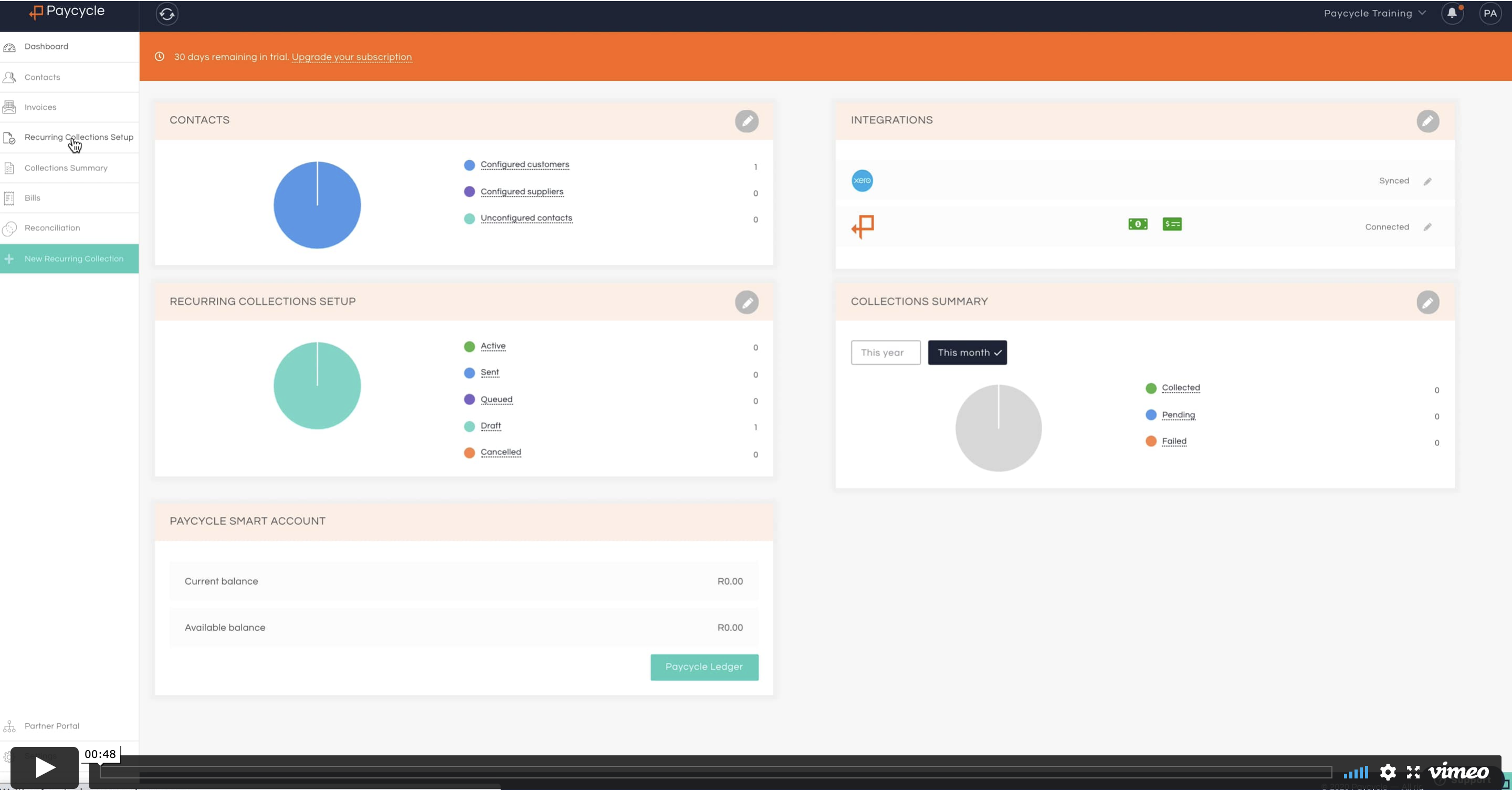
Already have a signed Mandate (hard copy or other form of electronic means) Once you have configure your mandate, you can save it to “Queued”, once saved to “Queued” you can manually inter the banking details of your Contact. After you have save the banking details the system will provide you with an option to “Internally accept” the mandate
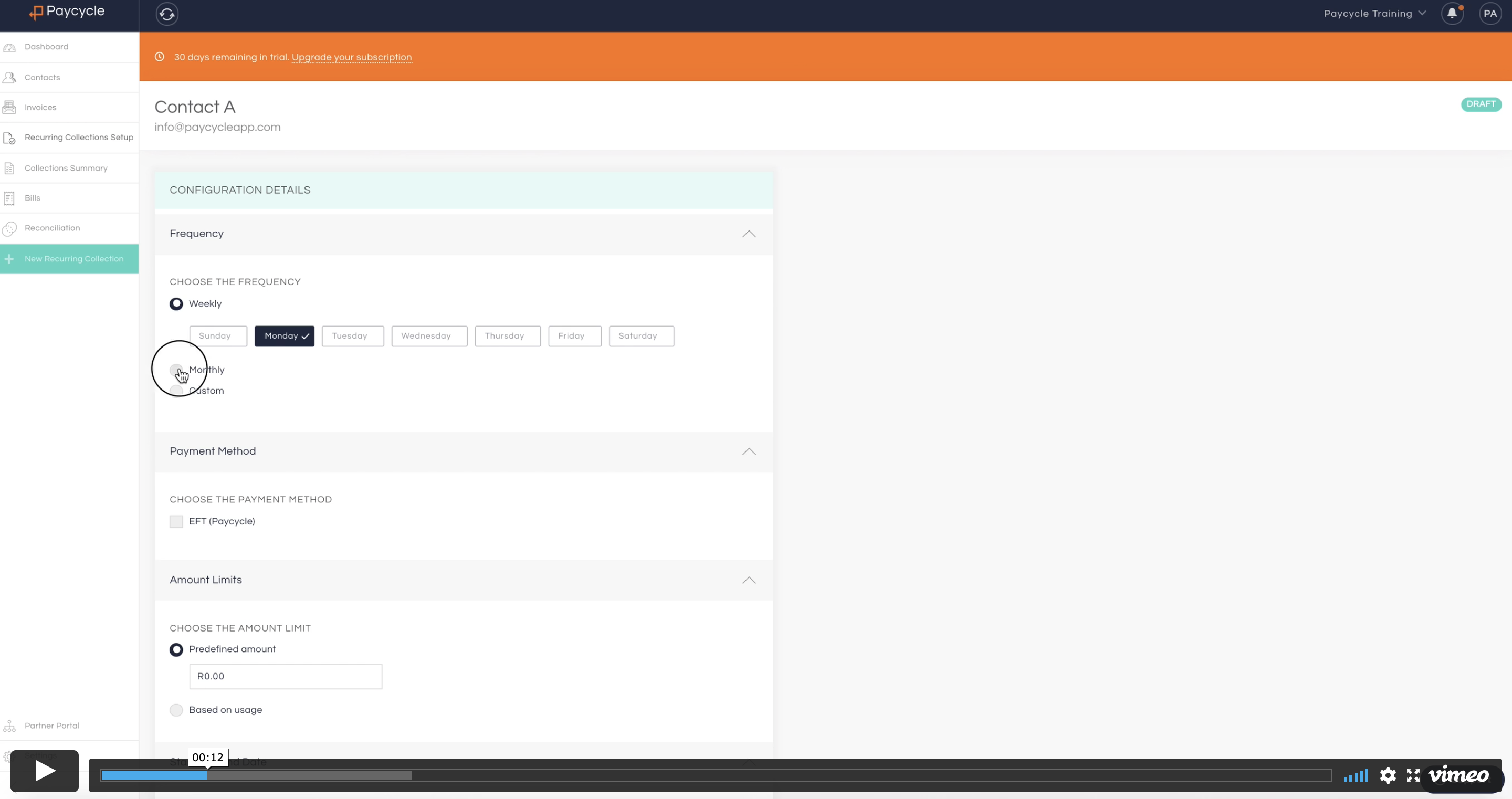
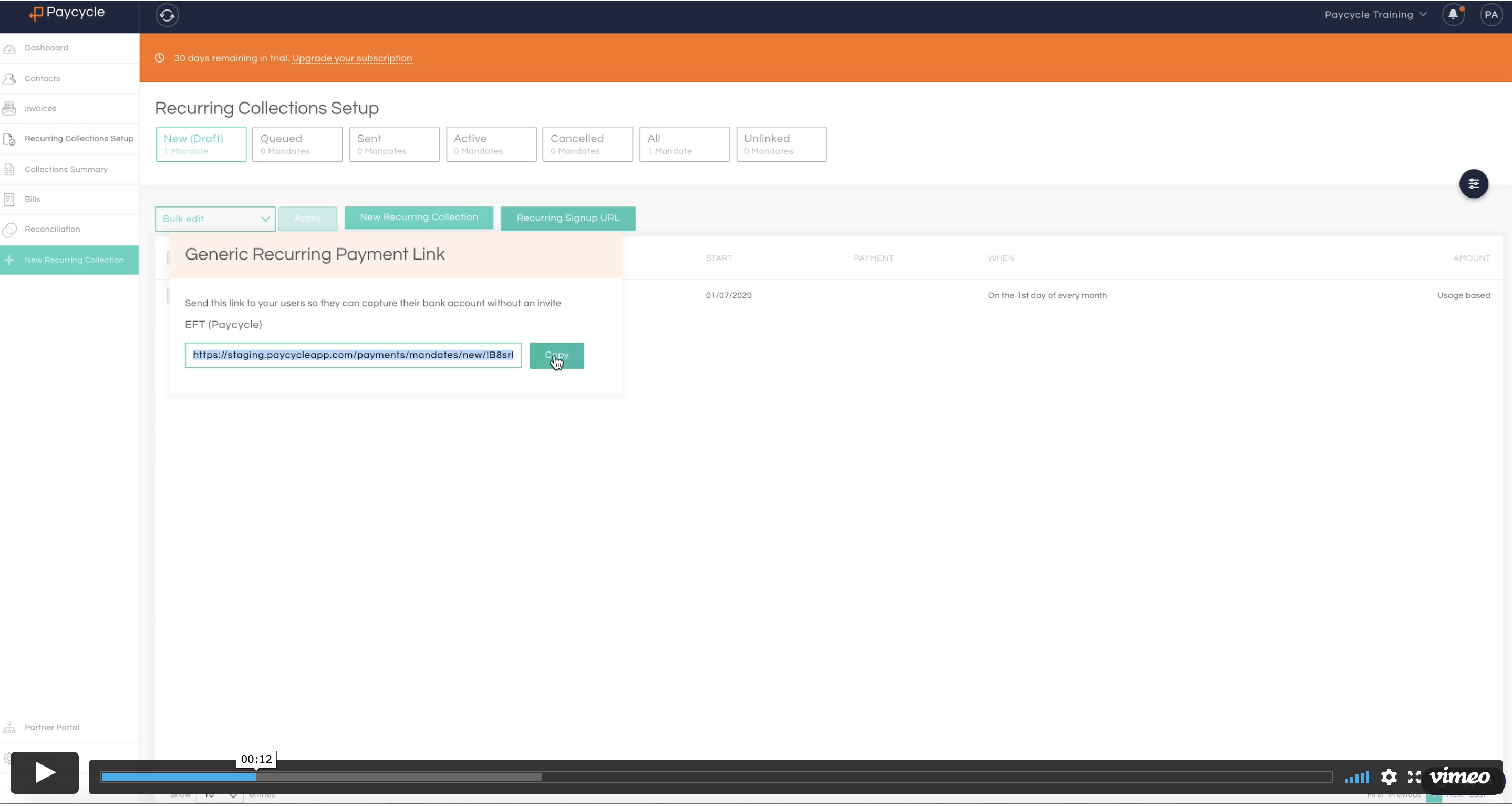
Each Paycycle company has a generic URL that is specific your Paycycle Account. You can share this with your client in an email or incorporate it with your own on-boarding process.
Once your contact has captured their details, the Paycycle user will be notified
Next step is the link this details to a Xero contact, only Madates that have a “Queued” will be visible in the dropdown.
We do support Zapier integrations, if the following fields are return to Paycycle it will Automatically activate the mandate for the Contact.
Required fields:
- Contact Name
- Email Address
- Bank account Code
- Bank Account No.
- Mandate/Contract Start Date
Please contact support for more details support@paycycleapp.com
Ready steady go, and thenAfter you have activate a mandate you would see the invoices of the contact being batch for collection in “Collection Summary Section”
As a Paycycle user it is important to run your VAR report before any collection day. This report would flag any potential variances and ensure all collections are 100% correct.
This report is a static report and need to be run every time you like to have the latest Xero info to be compared.
Some of the ErrorsMost of the times there could be collection variances in Paycycle vs Xero due to unallocated Credits or overpayments in your Accounting System. Once you reallocate this in your accounting system, Paycycle will re-batch within a couple of seconds.
Missing invoices or invoices paid already, but included in batch. In you VAR report section, simply select the Contact/s that you like to refresh and hit the action button. Paycycle will refresh
The “Refresh Collection” action should only be used for your problem collections, as selecting all for refresh could lead to Xero api limits being breached and 24hr to be reset.